

Firmware
Where to find firmware
The dongle and each keyboard half will have it's own firmware depending on what module you have installed.
You can find your firmware files using our Firmware Finder which can be found at https://splitkb.com/fw.
Go to the Firmware FinderFlashing firmware
When you have downloaded the correct firmware for each half of the keyboard and the dongle you can start flashing the firmware.
First, insert the dongle in to the computer. On your computer you will see a new device pop up called HALCYON.
Drag and drop or copy and paste the firmware file in to the HALCYON device.
If the device is flashed successfully the device will get disconnected and after a couple of seconds. The flashing process may take a couple of seconds depending on which firmware you're installing. The process is similar on Windows, Linux and Mac. You may receive a file transfer error, but this can be ignored.
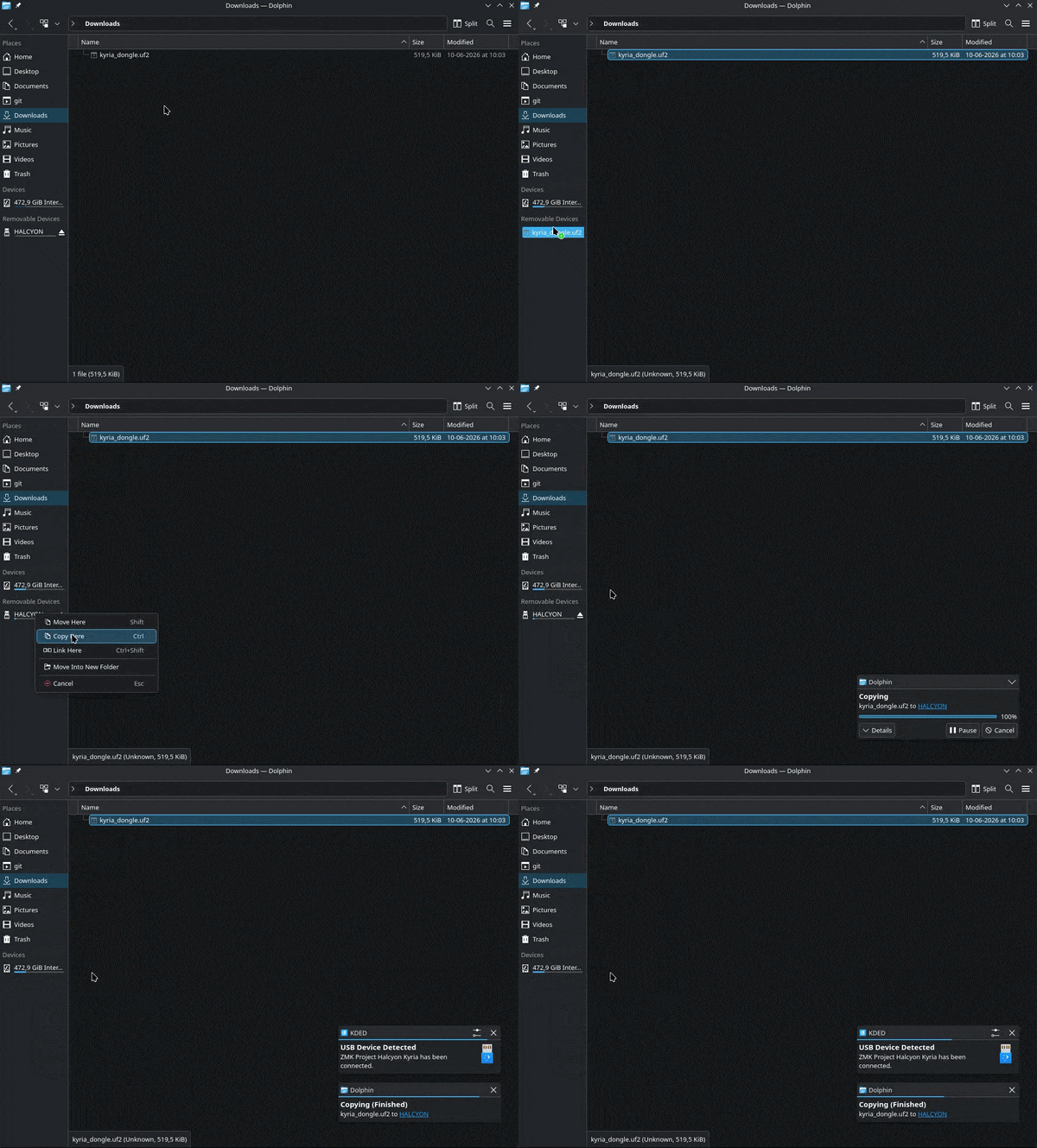
Flashing the keyboard on Linux (KDE Plasma).
You can now connect the left half in to the computer and repeat the steps above. Finally, repeat this for the right half as well.
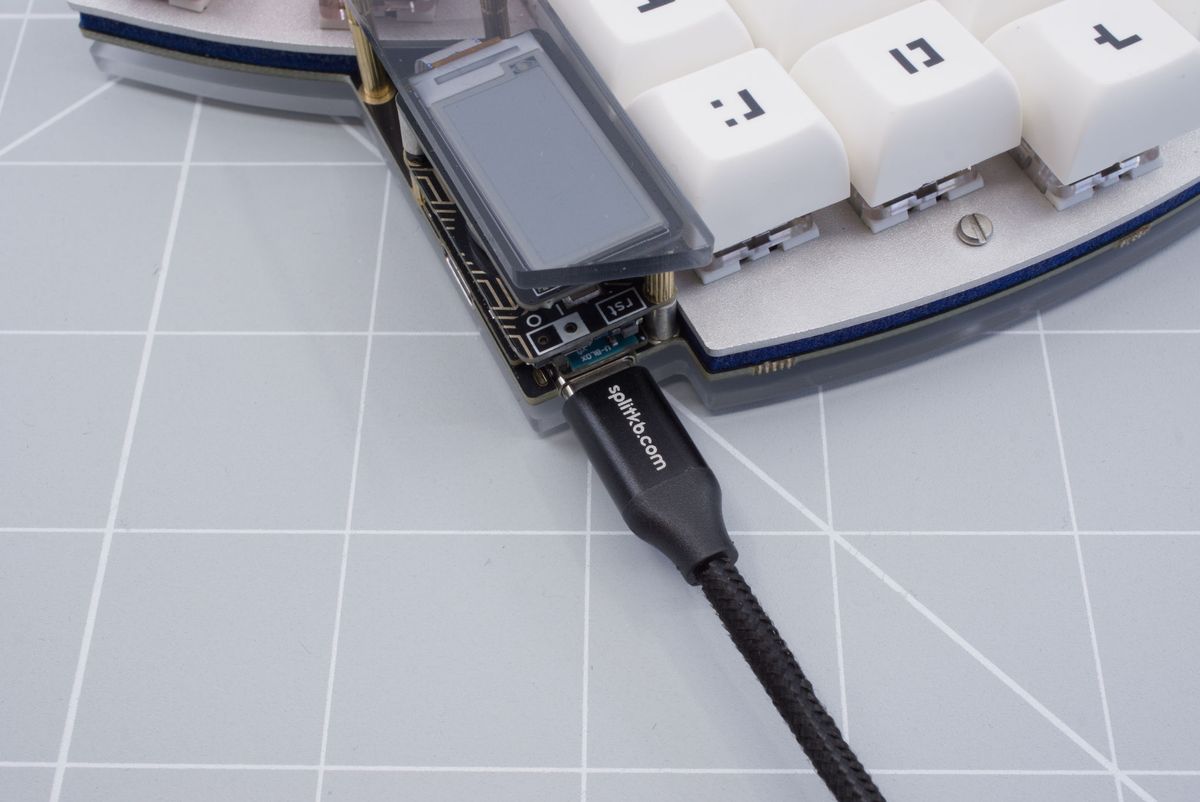
Plugged in keyboard half.
You have now successfully installed the firmware on to the keyboard!
Troubleshooting
If you encounter any issues flashing your wireless keyboard, please refer to the ZMK documentation page.
Go to the ZMK flashing issues pageKeycaps
Almost there - let's add the keycaps!
Next steps
You've successfully assembled the keyboard. What's next?