

Using your wired keyboard
This page will instruct you on how to use the keyboard and what the different modules do on your keyboard. Furthermore, you can read more about changing your keymap using Vial on this page.
Module behavior
Display
If you only have one display on your split keyboard set you will always see the screen with information about which layer you're on and the status of the num lock, scroll lock and caps lock.
If you have two displays, the slave side of the keyboard will show conway's game of life on it. Which will spawn new cells in random colors when you type on your keyboard!
Within vial you can also assign buttons to change the brightness of the screens using the backlight feature. (BL + and BL -)
Encoder
By default, the encoder is set to change your devices volume and mute the audio by pressing the button of the encoder.
Cirque touchpad
When sliding your finger across the surface you will move the mouse cursor around. Touch originating in the outer ring of the trackpad can trigger scrolling by moving your finger along the edge.
Using Vial
Please see the Vial usage guide.
Manually changing keymap
You can also of course change the keymap for QMK or Vial directly. Please see the instructions linked below.
Go to the QMK userspace instructionsReflashing firmware
If you ever want to change the module you have installed or maybe update the keyboard to the latest firmware you will need to reinstall the firmware.
To change the firmware, you can double-tap the reset button at the top of your controller. This button is small and may be hard to press using your finger. You can also use a spudger, guitar pick, plastic screwdriver, your fingernail or something similar to press this button.
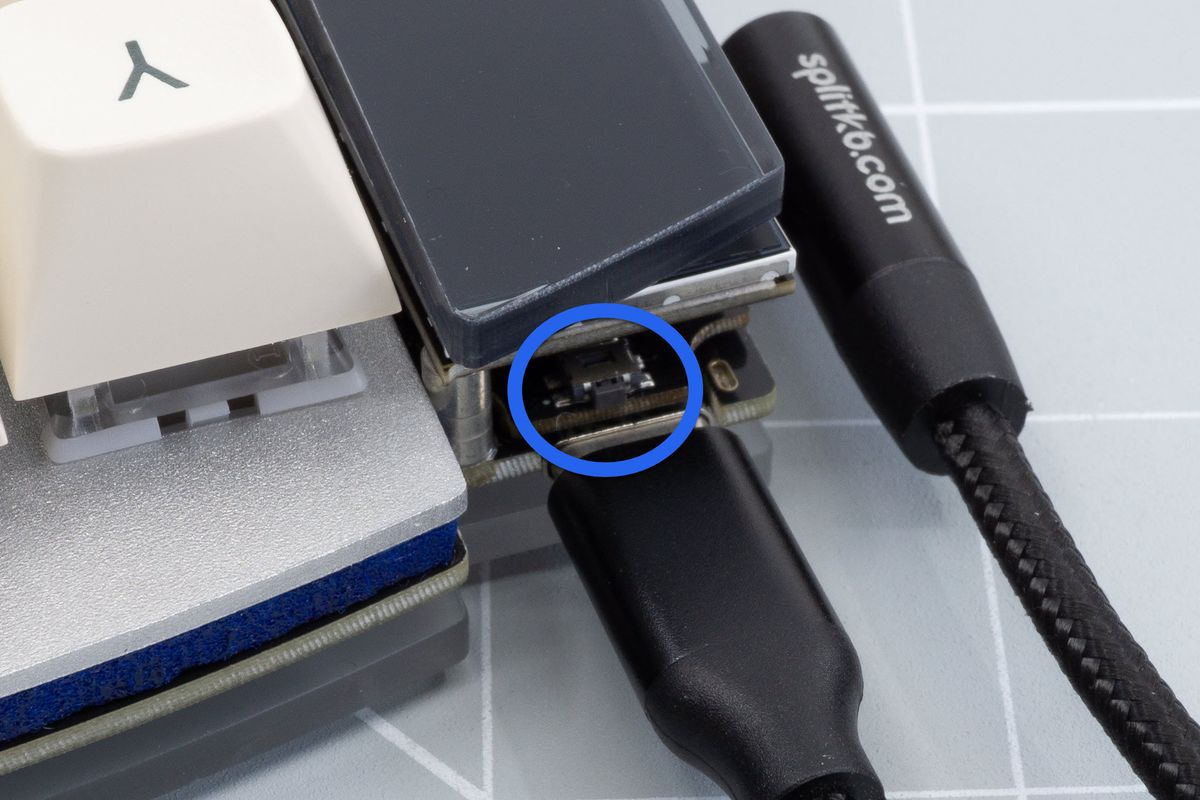
Position of the reset button on our wired controller.
This should make the RPI-RP2 device pop up again. You can then follow the steps from the build guide once more.
It's always wise to reinstall the firmware on both halves when changing firmware. This is because the firmware may be updated since you first started using the keyboard.
Troubleshooting
If your keyboard is unresponsive after double-tapping the reset button, yet won't present a disk, there's also an alternative way to enter the bootloader mode. To use it, you can hold the controller's boot button while plugging the cable into your keyboard.
The boot button is the top-facing button, located behind the reset button With no module installed press and hold the boot button and plug in the usb cable while still holding the boot button.
This should make the RPI-RP2 device pop up again. You can then follow the steps from the build guide once more.