

Using your wireless keyboard
This page will instruct you on how to use the keyboard and what the different modules and LEDs do on your keyboard. Furthermore, you can read more about changing your keymap and using ZMK studio on this page. Please also the frequently asked questions.
LEDs
Coin cell
When using the coin cell battery board, the LEDs will do the following:
- Blue: Show whether the keyboard is in bootloader mode and will blink if the battery is at 20% or lower.
- Orange: Show the status of the external power control of ZMK. As the RGB LEDs are not powered with a coin cell battery, this will indicate if it has been turned on, and you can turn it off accordingly.
LiPo
When using the LiPo battery board, the LEDs will do the following:
- Blue: Show whether the keyboard is in bootloader mode and will blink if the battery is at 20% or lower.
- Orange: Show the charging status of the LiPo battery.
Module behavior
Display
The display will show the current battery life, the wireless connection status and a nice image.
Encoder
By default, the encoder is set to change your devices volume and mute the audio by pressing the button of the encoder.
Cirque touchpad
You can move the mouse cursor by dragging your finger across the surface. You can also tap on the touchpad to click on something.
Changing keymap
ZMK Studio
All our Halcyon and Aurora keyboards have support for ZMK studio. Depending on the keyboard the studio_unlock button is mapped on a different position as shown in the next section. Make sure to always have this key accessible in your keymap, otherwise you can't unlock the keyboard and you'll have to reset the controller.
You can use ZMK Studio with a Chromium based browser (like Edge, Brave or Vivaldi) and Firefox at https://zmk.studio/. To use the native app for Linux, macOS, or Windows, visit the download page.
Go to the ZMK StudioCurrently ZMK Studio is a minimal viable product, and while it works, it's missing quite a few quality of life features. Luckily some community members have created forks which improve the base experience. Please note however that these are not officially supported. Some are listed below:
Studio Unlock Keys
For each keyboard hold the key labeled 1 and then tap the key labeled 2.
- Kyria:
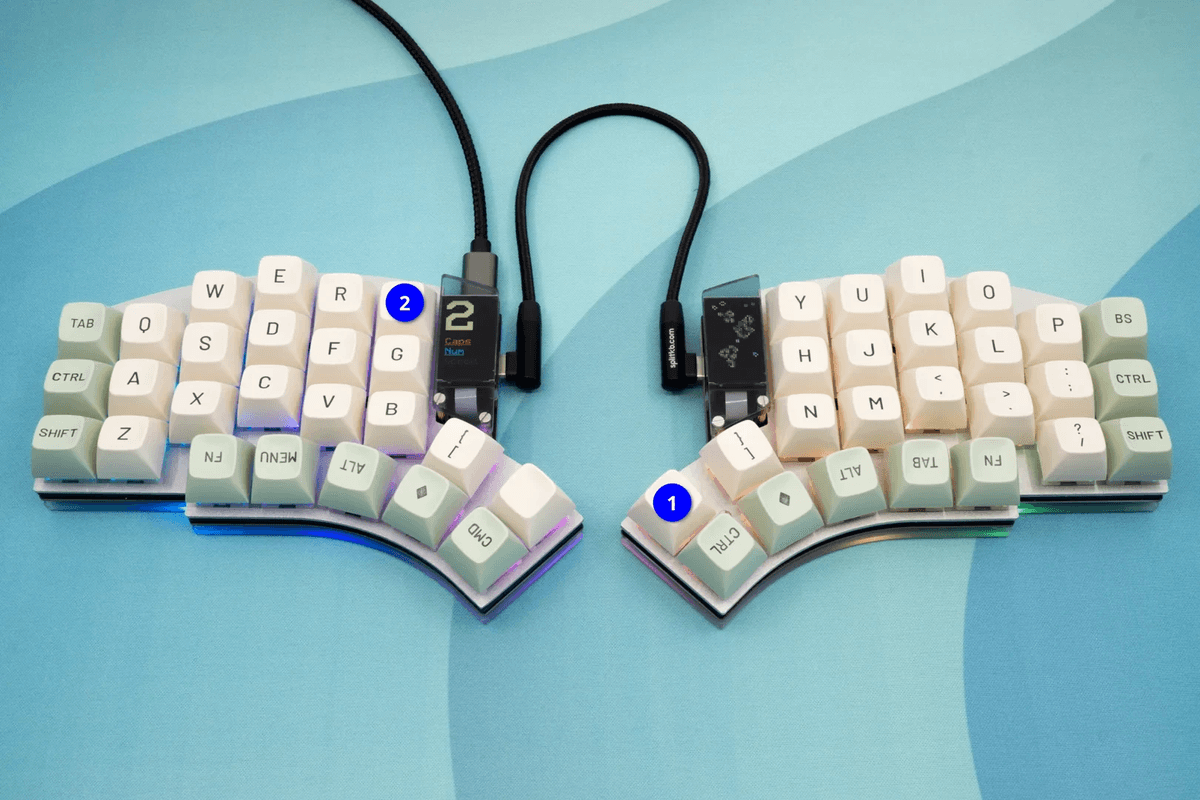
Kyria unlock keys.
- Elora:
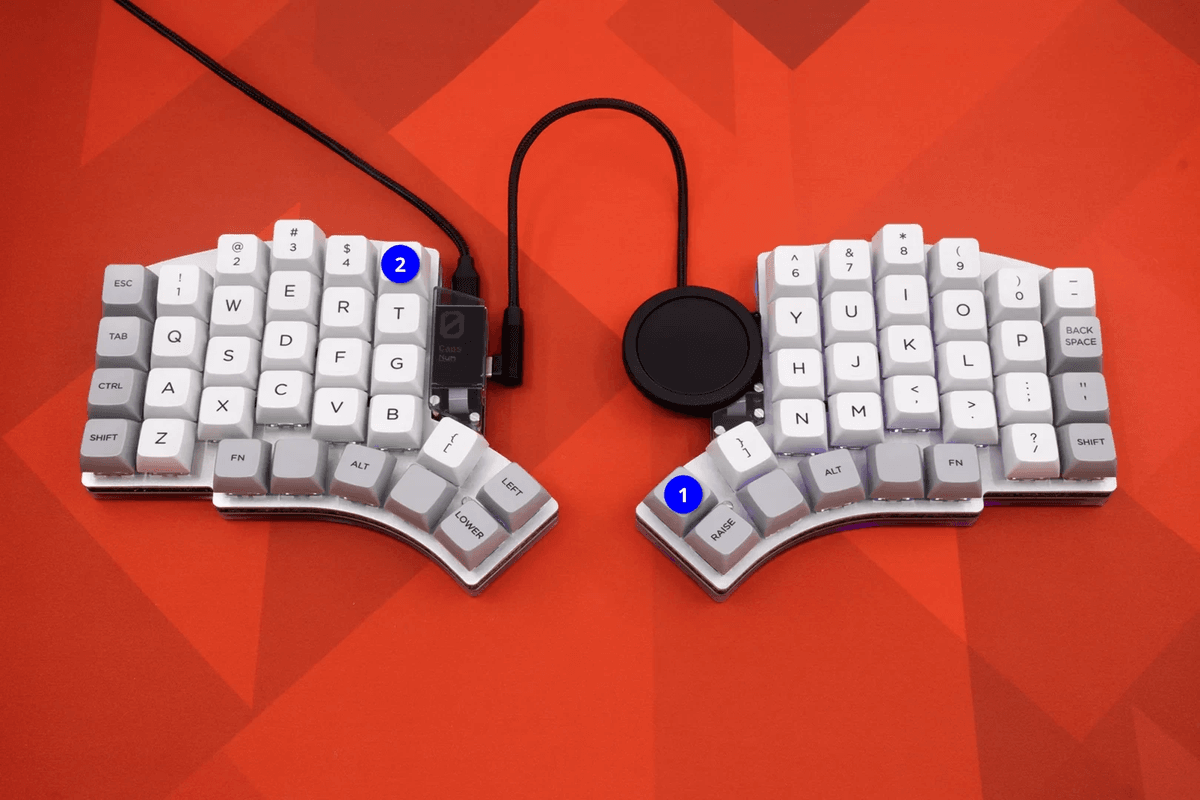
Elora unlock keys.
- Lily58:
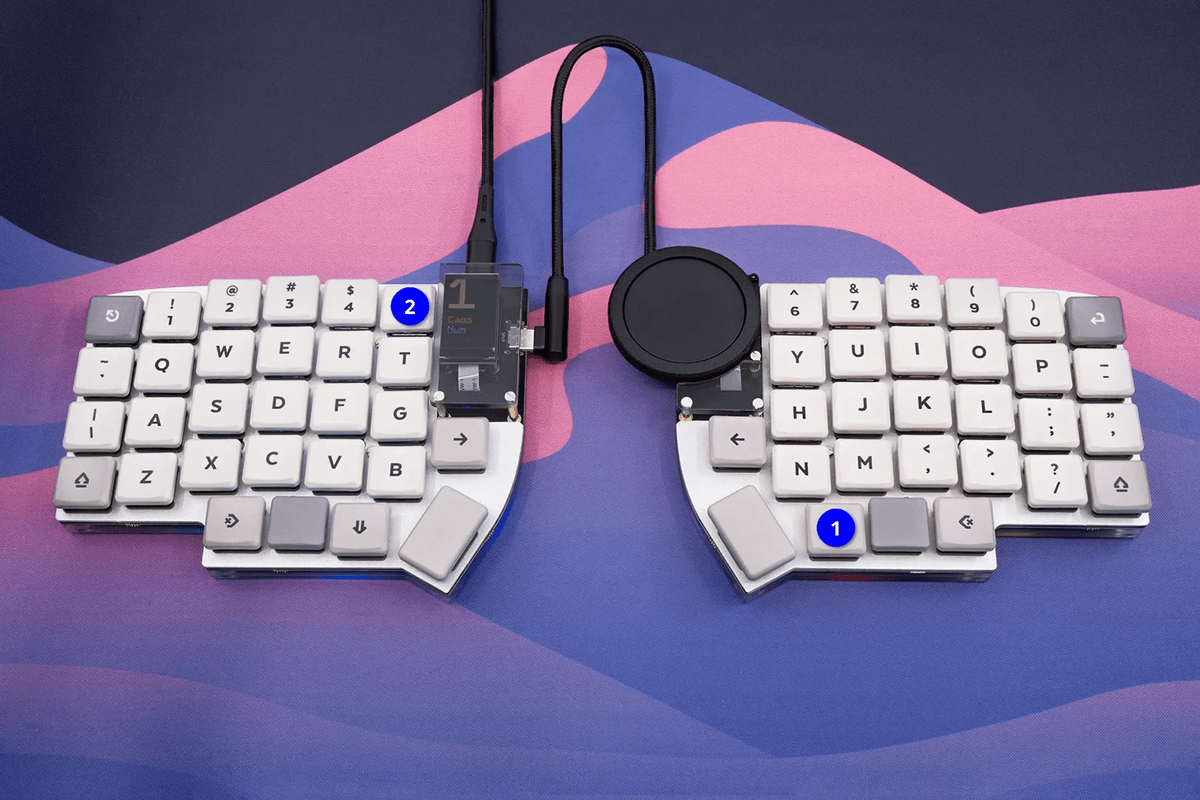
Lily58 unlock keys.
- Corne:
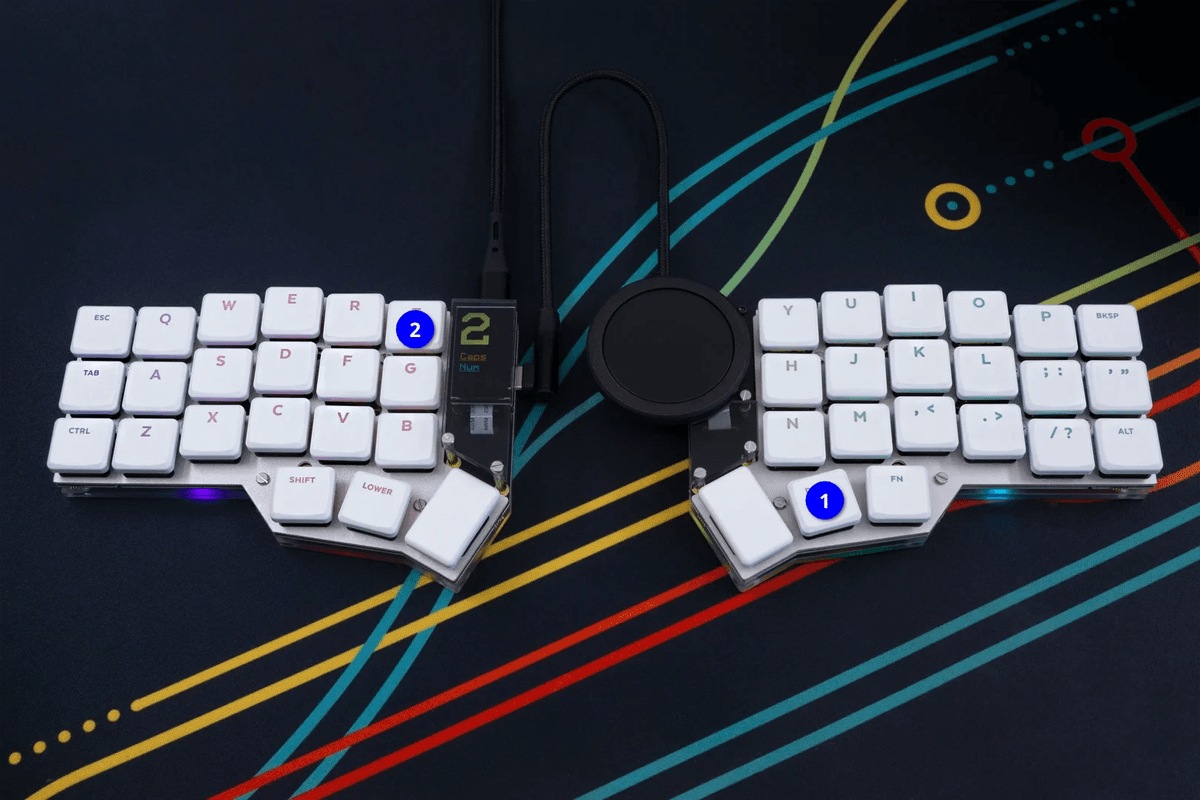
Corne unlock keys.
- Ferris / Sweep:
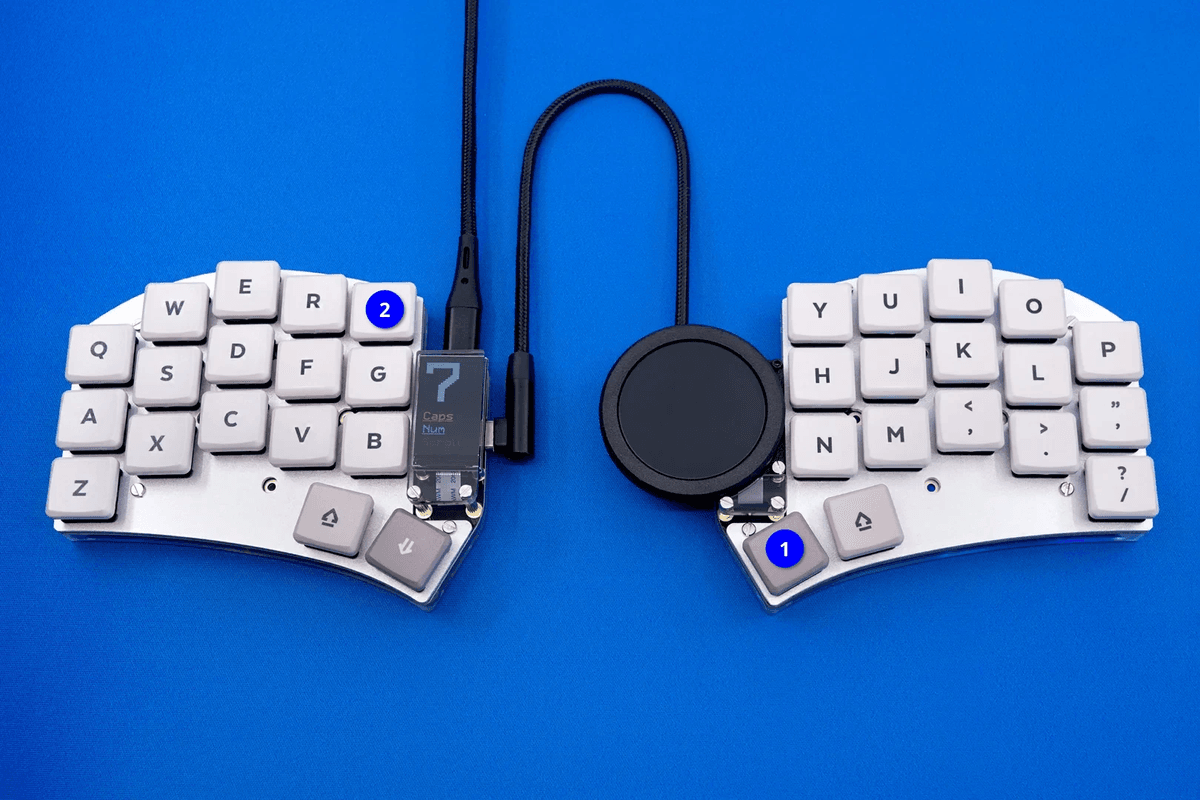
Ferris unlock keys.
- Sofle v2:
Image will be added at a later date. - Helix:
Image will be added at a later date.
Changing keymap manually
We've set up a ZMK Halcyon config on our Github page. The process of setting up the ZMK config is documented in the README in the repository linked below.
Go to the zmk-halcyon-config repoAfter that, if you only want to change your keymap, we recommend using the keymap editor created by nickcoutsos. Here you can connect your zmk-halcyon-config and make changes that are otherwise not possible in ZMK-studio and easily compile them back in to flashable files.
Reflashing firmware
If you ever want to change the module you have installed or maybe update the keyboard to the latest firmware you will need to reinstall the firmware.
To change the firmware, you can double-tap the reset button at the top of your controller or on the top of the battery board. This button is small and may be hard to press using your finger. You can also use a spudger, guitar pick, plastic screwdriver, your fingernail or something similar to press this button.
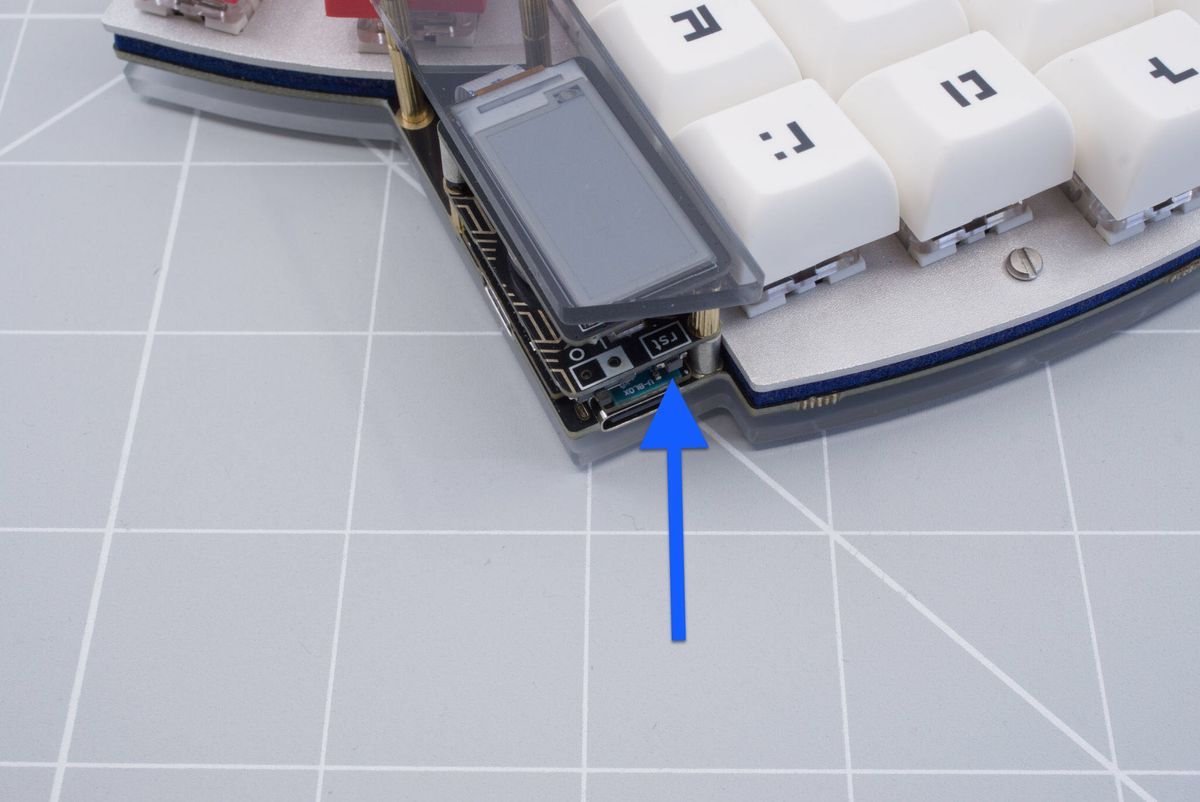
Position of the reset button on our wired controller.
This should make the HALCYON device pop up again. You can then follow the steps from the flashing guide once more.
It's always wise to reinstall the firmware on both halves and the dongle when changing firmware. This is because the firmware may be updated since you first started using the keyboard.
Replacing controller or dongle
If you ever change the controller which is installed on your keyboard, maybe due to a faulty controller or when you change or add a dongle, you must reset each half and dongle. This can be done by using the settings_reset firmware. Click here for the settings_reset firmware for the Halcyon wireless controller, or here for the Halcyon Dongle settings_reset firmware.
Perform the following steps to reset all parts of your split keyboard:
- Put each part of the split keyboard into bootloader mode.
- Flash one of the parts of the keyboard with the settings reset firmware.
- Repeat step 2 with the other half of the keyboard and the dongle.
- Flash the actual image for each part of the split keyboard (e.g my_board_left.uf2 to the left half, my_board_right.uf2 to the right half and my_board_dongle.uf2 to the dongle).
Pairing (Non dongle use only)
ZMK support bluetooth “profiles” which allows connection to multiple devices (5 by default). You can switch or clear these profiles by using the specified keys in the keymap.
Using your wired keyboard
How to use your wired keyboard.
Replacing keycaps
How to remove and replace keycaps.